How to publish your Clippsly tracks to Roblox
Follow this guide to easily publish your Clippsly tracks to Roblox and make sure they meet the platform's content guidelines for approval.
Important Content Guidelines
Before uploading your track, make sure it meets the following requirements:
- Tracks cannot be explicit, private, or moderated
- Cover art must not contain inappropriate images
- No explicit text in your display name, track title, or other metadata
- AI-generated tracks are not allowed
Failure to follow these guidelines may result in your track being rejected during moderation.
Step 1: Upload Your Track to Clippsly
Go to the Clippsly Upload Page
Head to the Clippsly Upload page to begin the process.
Upload your track and cover art
Follow the upload prompts and submit:
- your music file
- your cover artwork
- your track metadata
Before submitting, double-check that everything follows the content guidelines above.

Step 2: Visit the Track Management Page
Track Management
After uploading, visit the Track Management page to view:
- your track status
- moderation progress
- Roblox publishing updates

Step 3: Wait for Manual Review
Every track submitted to Roblox goes through a manual review by the Clippsly moderation team.
Please allow up to 1–2 weeks for the review process depending on queue volume.
This review helps ensure that all tracks comply with:
- Clippsly platform rules
- Roblox content standards
Step 4: Roblox Review & Approval
After passing Clippsly moderation, your track will be sent to Roblox for additional platform-side review and processing.
If your track is approved by Roblox, you'll receive:
- a confirmation email
- an inbox notification
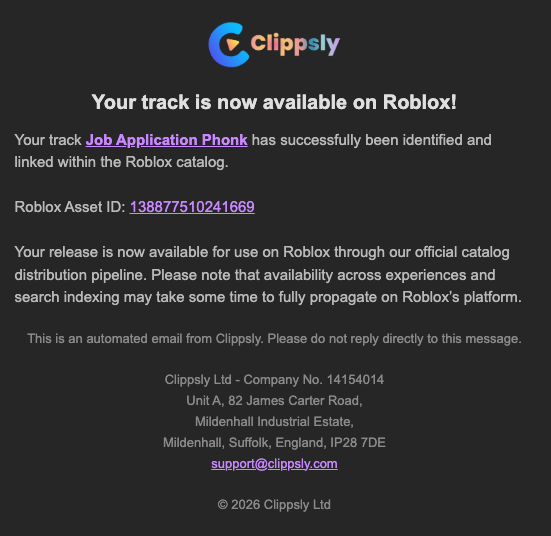
- your Roblox Asset ID
It'll look something like this:

If your track is rejected during moderation, you'll receive a rejection message explaining the issue.
It may look something like this:

Track Not Found?
If you can't find your track on Roblox immediately:
- check your inbox notifications
- check your email
- allow time for Roblox indexing and catalog updates
Some tracks may take additional time to appear across Roblox experiences and search results.
Track Approved
If your track has been approved, try searching for it in the Roblox catalog using:
- your track title
- your creator name
- your Roblox Asset ID
It should appear similar to this: